The Apple alarm clock, available on iPhones and Apple Watches, is a sophisticated system designed to provide reliable and customizable wake-up calls. It integrates seamlessly into daily routines, offering features from basic alarm setting to advanced sleep schedule management and hands-free control via Siri. This guide will help you master every facet of Apple’s built-in alarms for better mornings.
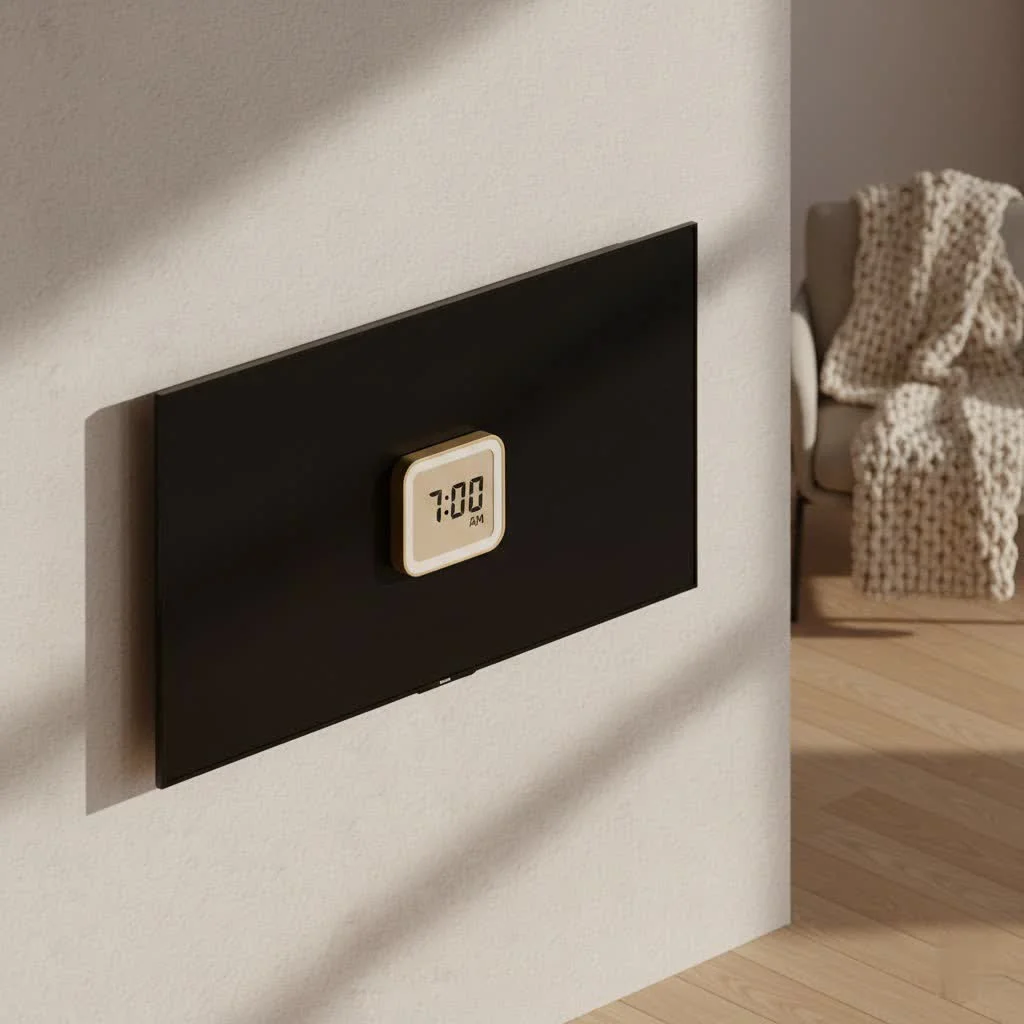
open up the Power of Your iPhone Alarm Clock
Your iPhone is a versatile alarm clock packed with features to help you start your day. For reviews buying guides on this site.
How to Set a Basic Alarm on iPhone
Setting a fundamental alarm is straightforward and ensures a punctual start to your day.
To begin, open the Clock app on your iPhone. Tap the Alarms tab at the bottom. To add a new alarm, tap the “+” (Add) button in the top-right corner. Use the scroll wheels to set your desired hour and minute, choosing between AM and PM. Once the time is set, tap Save.
Customizing Your iPhone Alarm
Tailoring your alarm can significantly improve your waking experience with several customization options:
- Repeat: Select specific days of the week for your alarm to sound, ideal for distinct weekday and weekend schedules.
- Label: Assign meaningful names like “Work Wake Up” or “Gym Time” to quickly identify and manage multiple alarms.
- Sound: Personalize your wake-up by choosing from Apple’s default ringtones, a vibration pattern, or a favorite song from your Apple Music library.
- Snooze: Toggle the snooze button on or off for each alarm. When enabled, it typically provides nine extra minutes of rest.
Controlling Your Alarm Volume
Ensuring the correct alarm volume is crucial to avoid oversleeping or a jarring start.
To adjust the main alarm volume, navigate to Settings > Sounds & Haptics. Under the “Ringtone and Alerts” section, drag the slider left or right to set your preferred volume. Enable “Change with Buttons” to use your iPhone’s physical volume buttons for alarm volume control. A critical feature is that the Apple alarm clock will sound at its set volume even if your iPhone is in Silent Mode or a Focus mode (like Do Not Disturb) is active, ensuring you never miss an important wake-up call.
Siri: Your Hands-Free Alarm Assistant
For quick, effortless alarm management, use Siri, your intelligent personal assistant.
Just say “Hey Siri,” followed by a command such as “Set an alarm for 7 AM” or “Set a repeating alarm for weekdays at 6:00 AM.” Siri can also help disable alarms, change their times, or list currently set alarms, making morning management truly hands-free.
StandBy Mode: Your iPhone as a Smart Bedside Clock
|
Our Picks for the Best Alarm Clock in 2026
As an Amazon Associate I earn from qualifying purchases.
|
||
| Num | Product | Action |
|---|---|---|
| 1 | Digital Projection Alarm Clocks for Bedrooms - Large LED Display, 180° Rotatable Projector, 5-Level Dimmer,USB Charger,Battery Backup,Loud Dual Alarms for Kids Elderly,Heavy Sleepers,Snooze,12/24H,DST |

|
| 2 | Sunrise Alarm Clock White Noise Machine: Natural Wake Up Light - Dimmable Clock with Bluetooth Speaker for Bedroom - 25 Sleep Sounds for Baby Adults Kids Putty |
|
| 3 | Mesqool Digital Projector Alarm Clocks for Kids Bedroom,Plug-in Clock with 180° Projection on Ceiling Wall,Dual Alarms for Heavy Sleepers,Battery Backup,USB Charging Port,Easy-to-Set,Dimmer,Snooze |
|
| 4 | Swissbrand Sunrise Alarm Clock with Multicolor LED Light, USB Charging & Indoor Temperature – Concrete-Print Digital Clock for Bedroom Nightstand |
|
| 5 | Mesqool Projection Alarm Clock, Digital Clock with 180° Rotatable Projector, 5-Level Brightness Dimmer, Clear LED Display, USB Charger, Progressive Volume, 9mins Snooze,12/24H, for Bedroom |
|
| 6 | Amazon Echo Spot (newest model), Great for nightstands, offices and kitchens, Smart alarm clock with Alexa+ Early Access, Glacier White |
|
| 7 | Amazon Basics Small Digital Oval Alarm Clock With LED Display, Nightlight & Battery Backup, Black, 4.5 x 3.5 x 2.4 Inches |
|
| 8 | Philips SmartSleep Wake-up Light, Colored Sunrise and Sunset Simulation, 5 Natural Sounds, FM Radio & Reading Lamp, Tap Snooze, HF3520/60 |
|
| 9 | LỖI |
|
| 10 | Wake Up Light Sunrise Alarm Clock for Kids, Heavy Sleepers, Bedroom, with Sunrise Simulation, Sleep Aid, Dual Alarms, FM Radio, Snooze, Nightlight, Daylight, 7 Colors, 7 Natural Sounds, Ideal for Gift |
|
With compatible iPhones (iPhone 14 Pro models and newer), StandBy Mode transforms your device into a smart display when charging in landscape orientation.
In StandBy Mode, your iPhone can display a customizable clock, photos, widgets, and upcoming alarms, turning your nightstand into a functional information hub. This is useful for those who prefer a dedicated bedside clock with smart features. You can enable Night Mode within StandBy settings for a red-tinted display that is less disruptive in low light.
Your Apple Watch as a Seamless Wake-Up Companion
The Apple Watch functions as a personal and effective alarm clock, offering discreet wake-up options directly on your wrist.
Setting Alarms Directly on Apple Watch
Setting an alarm on your Apple Watch is intuitive and convenient.
Press the Digital Crown to open your apps, then tap the Alarms app icon. To create a new alarm, tap the “+” button. Rotate the Digital Crown to set the hour and minute, tapping the screen to switch between adjustments. Once the time is set, tap the checkmark to save.
Customizing Watch Alarms for Your Lifestyle
Tailor your Apple Watch alarms to suit your daily rhythm with these options:
- Repeat: Choose to have your alarm sound “Every Day,” “Weekdays,” “Weekends,” or select specific days.
- Label: Name your alarm for clarity, such as “Morning Run” or “Meditation.”
- Snooze: Toggle the snooze feature on or off.
- Break Through Silent Mode: This ensures your alarm plays a sound even if your Apple Watch is in Silent Mode. If Silent Mode is enabled, the alarm will gently tap your wrist with haptic feedback instead of sounding.
Nightstand Mode: A Dedicated Watch Alarm Experience
When your Apple Watch is charging, placed on its side, and Nightstand Mode is enabled (in Settings > General > Nightstand Mode), it transforms into a thoughtful bedside clock. It displays the time, date, charging status, and your next alarm.
When an alarm sounds in Nightstand Mode, it gently illuminates the display and plays a unique, gradual alarm sound. Press the Digital Crown to snooze or the side button to dismiss the alarm. This offers a less disruptive wake-up, ideal for shared rooms.
Important Note on Apple Watch Alarm Sync
Apple Watch alarms are device-specific and do not sync with your iPhone, iPad, or Mac alarms. While much of your Apple ecosystem data is shared via iCloud, alarms are intentionally independent for each device. This allows for separate alarm schedules on your Watch and iPhone without interference.
Integrating with Sleep Focus: A Holistic Approach to Rest
Apple’s Sleep Focus is a comprehensive feature designed to promote healthier sleep habits by minimizing distractions and integrating with your alarm clock functionality.
What is Sleep Focus?
Introduced as part of Apple’s Focus modes, Sleep Focus helps you wind down before bed and maintain a consistent sleep schedule. When activated, it silences notifications, dims your lock screen, and can change your Home Screen to a calming setup, signaling unavailability.
How Sleep Focus Interacts with Your Alarm
Native Apple Clock app alarms will still sound as scheduled, even when Sleep Focus is active. Apple prioritizes your wake-up call. However, if you use third-party alarm clock apps, you might need to add them as exceptions in your Sleep Focus settings to ensure they are not silenced.
Setting a Wake-Up Alarm via Sleep Schedule
For a truly integrated sleep experience, set your wake-up alarm as part of a full sleep schedule within the Health app.
- Open the Health app on your iPhone.
- Tap the Browse tab at the bottom, then search for and select “Sleep.”
- Scroll down to “Your Schedule” and tap “Full Schedule & Options.”
- Here, you can set your desired bedtime and wake-up times, and enable or disable the alarm for this schedule.
- Within this section, you can also customize the alarm’s sound, haptics, volume, and snooze duration, making it a central hub for your sleep and wake routines.
As Dr. Elara Vance, a Sleep and Productivity Specialist, emphasizes, “A well-managed Apple alarm clock isn’t just about waking up; it’s about setting the stage for a day of clarity and focus. The seamless integration across Apple devices empowers users to create a personalized wake-up ritual that respects their sleep cycles and primes them for productivity.”
Troubleshooting Common Apple Alarm Clock Issues
Even with Apple’s reliable technology, occasional hiccups can occur. Here’s how to address some common alarm clock issues:
Alarm Volume Too Low or Not Sounding
If your alarm is barely audible or completely silent, check these settings:
- Sound & Haptics: Go to Settings > Sounds & Haptics and ensure the “Ringtone and Alerts” slider is set to an appropriate volume.
- Alarm Sound Selection: In the Clock app, tap on your alarm, then “Sound.” Make sure a specific ringtone or song is selected, and it’s not set to “None.”
- Battery Level: While alarms generally sound even on low battery, a critically depleted battery might prevent it. Always ensure your device is charging overnight.
Third-Party Alarms Silenced by Focus
If you use a non-Apple alarm app and it’s not sounding during Sleep Focus or other Focus modes, you’ll likely need to grant it an exception. Go to Settings > Focus, select the relevant Focus mode (e.g., Sleep), then under “Allowed Apps,” add your third-party alarm app.
Alarms Not Syncing
As mentioned, Apple Watch alarms are independent of your iPhone alarms. If you’re expecting an alarm to transfer between devices, this is by design for the built-in alarms.
Frequently Asked Questions (FAQ)
1. Does the Apple alarm work if my iPhone is on silent mode?
Yes, absolutely! Alarms set through the native Clock app on your iPhone are designed to bypass Silent Mode, ensuring you hear them regardless of your silent switch setting.
2. Can I use a custom song as an iPhone alarm?
Yes, you can. When setting or editing an alarm in the Clock app, tap “Sound,” then scroll down to “Songs” and tap “Pick a song” to choose one from your Apple Music library.
3. Do Apple Watch alarms sync with my iPhone?
No, Apple Watch alarms are device-specific and do not automatically sync with your iPhone, iPad, or Mac alarms. You’ll need to set them independently on each device.
4. How do I make my iPhone alarm louder?
You can adjust the alarm volume in Settings > Sounds & Haptics using the “Ringtone and Alerts” slider. Ensure “Change with Buttons” is enabled if you want to use your physical volume buttons.
5. What’s the difference between a regular alarm and a Sleep Schedule alarm?
A regular alarm is a one-off or recurring alarm set directly in the Clock app. A Sleep Schedule alarm is part of a broader sleep routine managed in the Health app, which can also activate Sleep Focus and track your sleep patterns. Both use the same underlying alarm functionality.
6. Will my alarm go off if my iPhone battery dies overnight?
No, if your iPhone’s battery completely dies, your alarm will not sound. It’s always crucial to ensure your iPhone is charged overnight, especially when relying on it for your wake-up call.
7. Can Siri set repeating alarms?
Yes, Siri is quite capable! You can use commands like “Hey Siri, set a repeating alarm for weekdays at 7 AM” to create alarms that go off on specific days.
Conclusion
The “Apple alarm clock,” whether on your iPhone or Apple Watch, is a remarkably robust and customizable tool designed to help you start your day right. From setting basic wake-up calls to integrating with advanced Sleep Focus routines and transforming your device into a smart bedside display, Apple offers a reliable and intelligent solution for managing your mornings. By understanding and utilizing these features, you can optimize your personal wake-up strategy, ensuring a smoother transition from sleep to a productive day. Experiment with the settings, find what works best for your routine, and take control of your mornings with confidence.
Get our weekly buyer guide
Practical specs, not advice. Unsubscribe anytime.
I used to struggle so much with waking up on time, but ever since I started using the sleep schedule management feature on my iPhone, it’s been a game changer. It really helps me maintain a consistent sleep routine, and I love how it gently wakes me up. Definitely recommend diving into those advanced settings if you haven’t already!
I’ve been trying to use Siri for hands-free control of my alarms, and while it works sometimes, it’s not always as responsive as I’d like. There have been a few mornings where I had to manually adjust it anyway. It’s a cool concept, but I find myself just using the scroll wheels in the app more often.
My Apple Watch alarm has been fantastic for silent wake-ups. The haptic feedback is perfect for not disturbing my partner, and it syncs perfectly with my iPhone. It’s truly a sophisticated system that makes mornings much less jarring. Couldn’t go back to a traditional alarm clock now.
The basic alarm setting on the iPhone is super reliable, which is all I really need most days. I appreciate how straightforward it is to just open the Clock app and set it. My only minor gripe is that sometimes I wish there were more unique sound options beyond the standard ones, but it gets the job done.